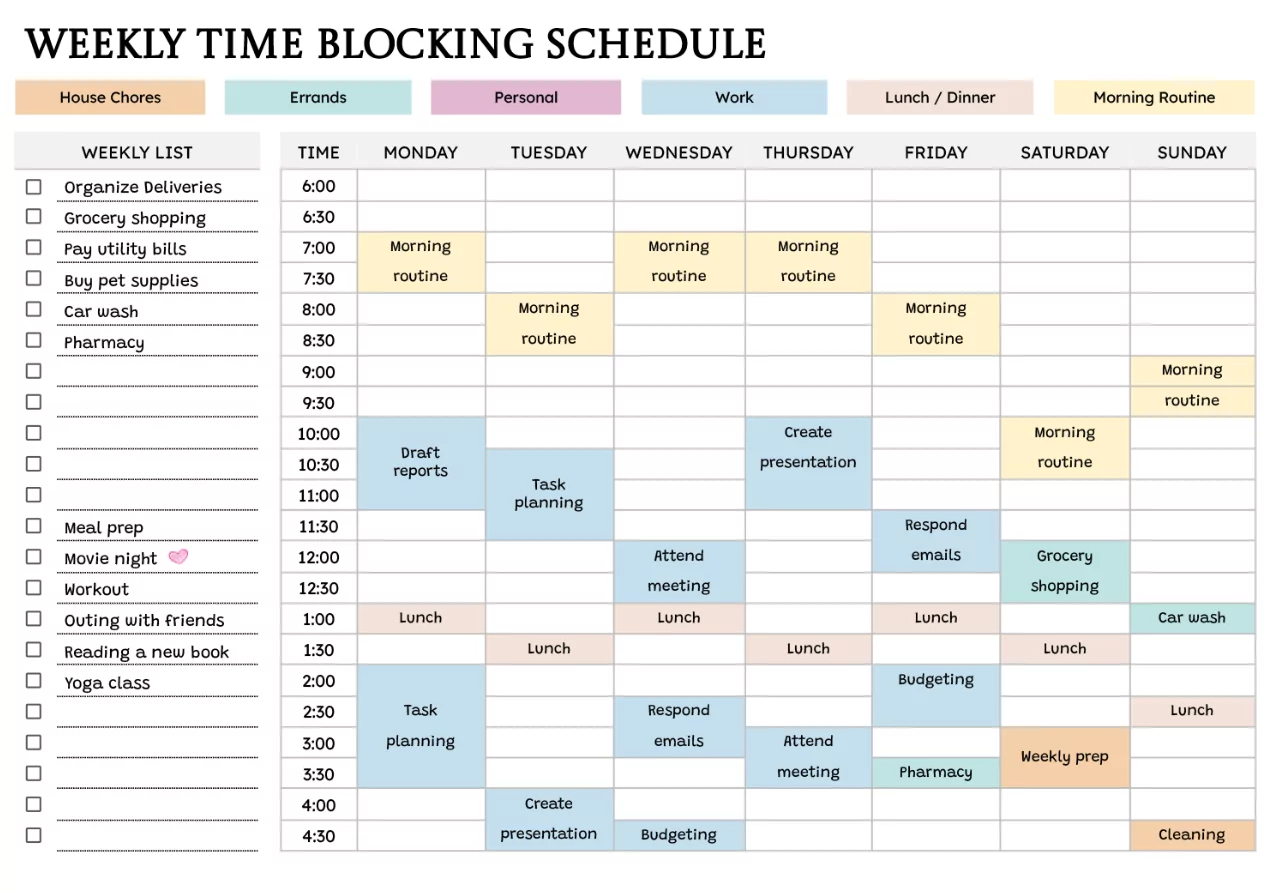
Managing life across different ecosystems—Google for personal use, Outlook for work, and iCloud for family—can lead to missed appointments and double bookings. The solution is not to merge them permanently, but to create a “single pane of glass” view where all events appear on every device.
Below is an expert guide to syncing multiple calendars, ensuring you have a unified schedule whether you are on an iPhone, Android, Mac, or Windows PC.
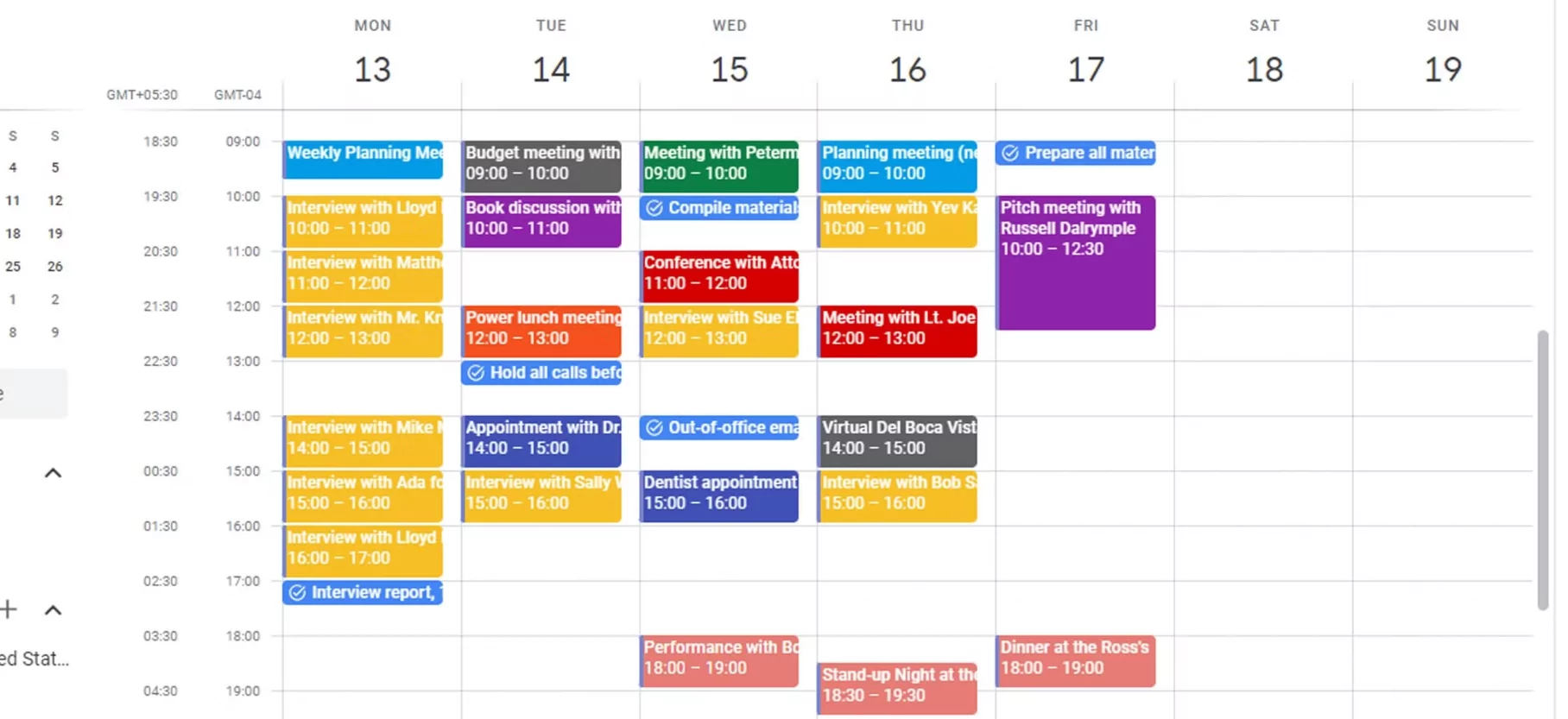
The Golden Rule: “Subscribe” vs. “Add Account”
Before you start, understand the two ways to sync, as this is where most users get stuck:
- Method A: Adding the Account (Best for Mobile). You log in to the device settings with your credentials. This gives you full Read/Write access. You can create and edit events for all calendars.
- Method B: Subscribing via URL (Best for Desktop/Web). You use a secure iCal link to “view” one calendar inside another. This is usually Read-Only. Use this when you want to see your work schedule on your personal Gmail calendar but don’t need to edit it.
Scenario 1: Syncing Everything to iPhone/iPad (iOS)
Apple makes this easiest because it treats the calendar app as a neutral viewer for all services.
- Step 1: Go to Settings > Calendar > Accounts.
- Step 2: Tap Add Account. Select Google, Outlook, or Exchange.
- Step 3: Log in and ensure the toggle switch for “Calendars” is Green/On.
- Expert Tip: Scroll down in Calendar settings to “Default Calendar.” Set this to the calendar you use most often (e.g., your personal Gmail). New events created via Siri or quick-add will default to this bucket.
Scenario 2: Syncing Outlook to Google Calendar
Many corporate environments lock down Outlook, preventing you from adding personal accounts to it. The workaround is to pull your Outlook view into Google.
- Step 1 (In Outlook Web): Go to Settings > Calendar > Shared Calendars. Under “Publish a Calendar,” select your calendar and choose “Can view all details.” Copy the ICS link.
- Step 2 (In Google Web): Go to Settings. On the left sidebar, click “Add Calendar” > “From URL.” Paste the ICS link.
- Result: Your work meetings now appear in your personal Google Calendar (Read-only). Note that Google refreshes these feeds every 12–24 hours, so it is not instant.
Scenario 3: Syncing Google to Outlook (Desktop App)
If you live in the Outlook desktop app for work but need to see your personal life:
- Step 1 (In Google): Go to Settings > Select your calendar > “Integrate Calendar.” Copy the “Secret address in iCal format.”
- Step 2 (In Outlook): Go to File > Account Settings > Account Settings. Click the “Internet Calendars” tab.
- Step 3: Click “New” and paste the Google URL. Name it “Personal Google.”
- Result: Your personal events will appear as an overlay or side-by-side view in Outlook.

Expert Troubleshooting & Optimization
Fixing “Slow Sync” Issues
If you update an event on your laptop and it doesn’t appear on your phone immediately:
- On Android: Go to Settings > Accounts > [Your Account] > Account Sync. Toggle “Calendar” off and on again to force a push.
- On iOS: Open the Calendar app, tap “Calendars” at the bottom, and pull down specifically to force a refresh.
Using “Calendar Middleware” for True 2-Way Sync
If “Read-Only” links aren’t enough (e.g., you need a personal appointment to actually block off time on your work calendar so colleagues can’t book you), native syncing won’t work.
You need “Calendar Middleware” tools. Services like CalendarBridge, Reclaim.ai, or Morgen actually copy events from one server to another automatically. This effectively “blocks” your availability across platforms without sharing the private details of the appointment.
Color Coding Strategy
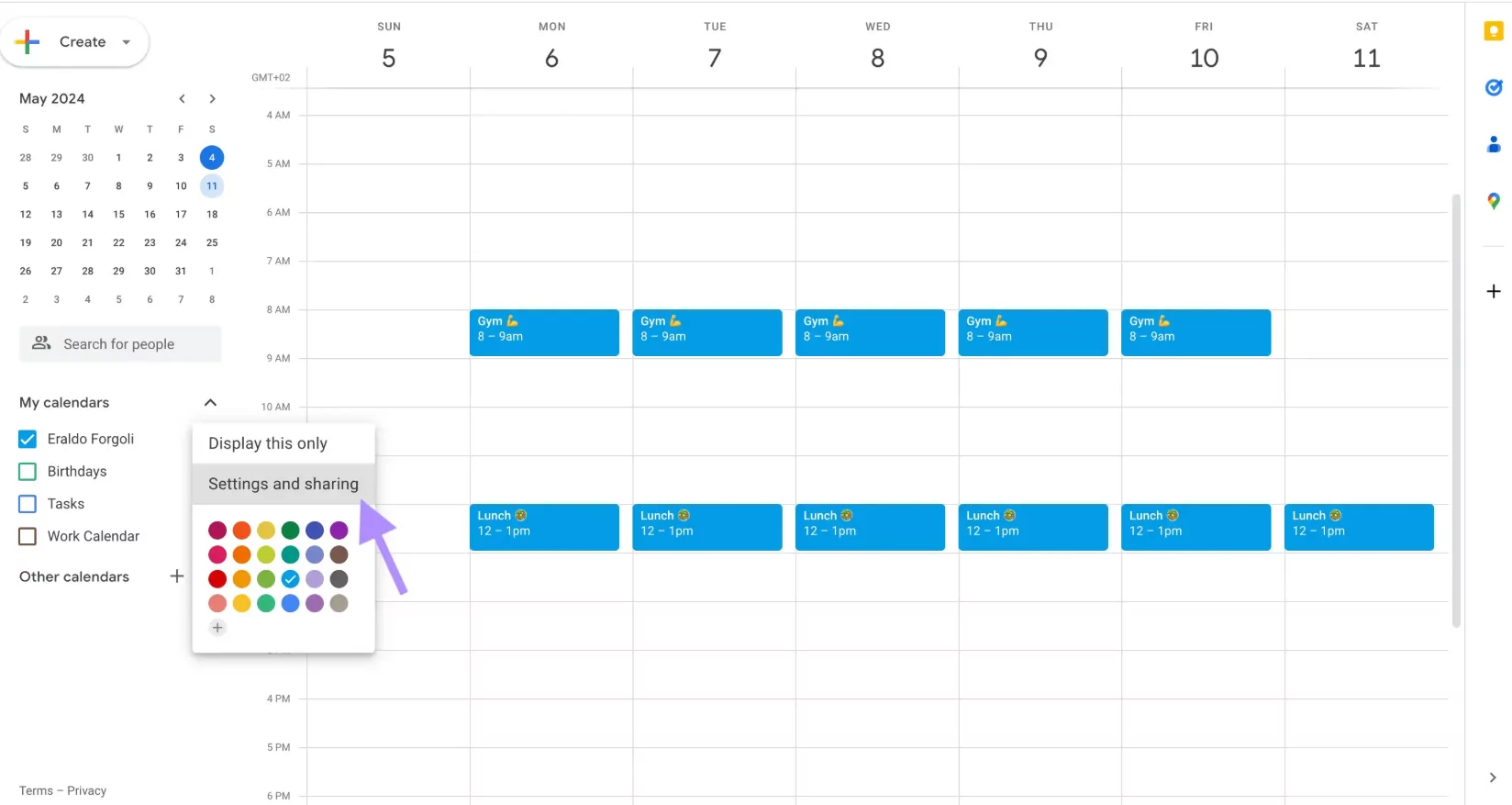
Once synced, your device will be crowded. Use strict color coding to maintain sanity:
- Red: Work/Outlook (Non-negotiable).
- Blue: Personal/Google (Flexible).
- Green: Shared/Family (Coordinated).