Time blocking is a productivity method where you plan your day by assigning specific blocks of time to specific tasks, priorities, and breaks. Instead of working from an endless to-do list, you follow a realistic calendar plan that protects focus time and reduces context switching.
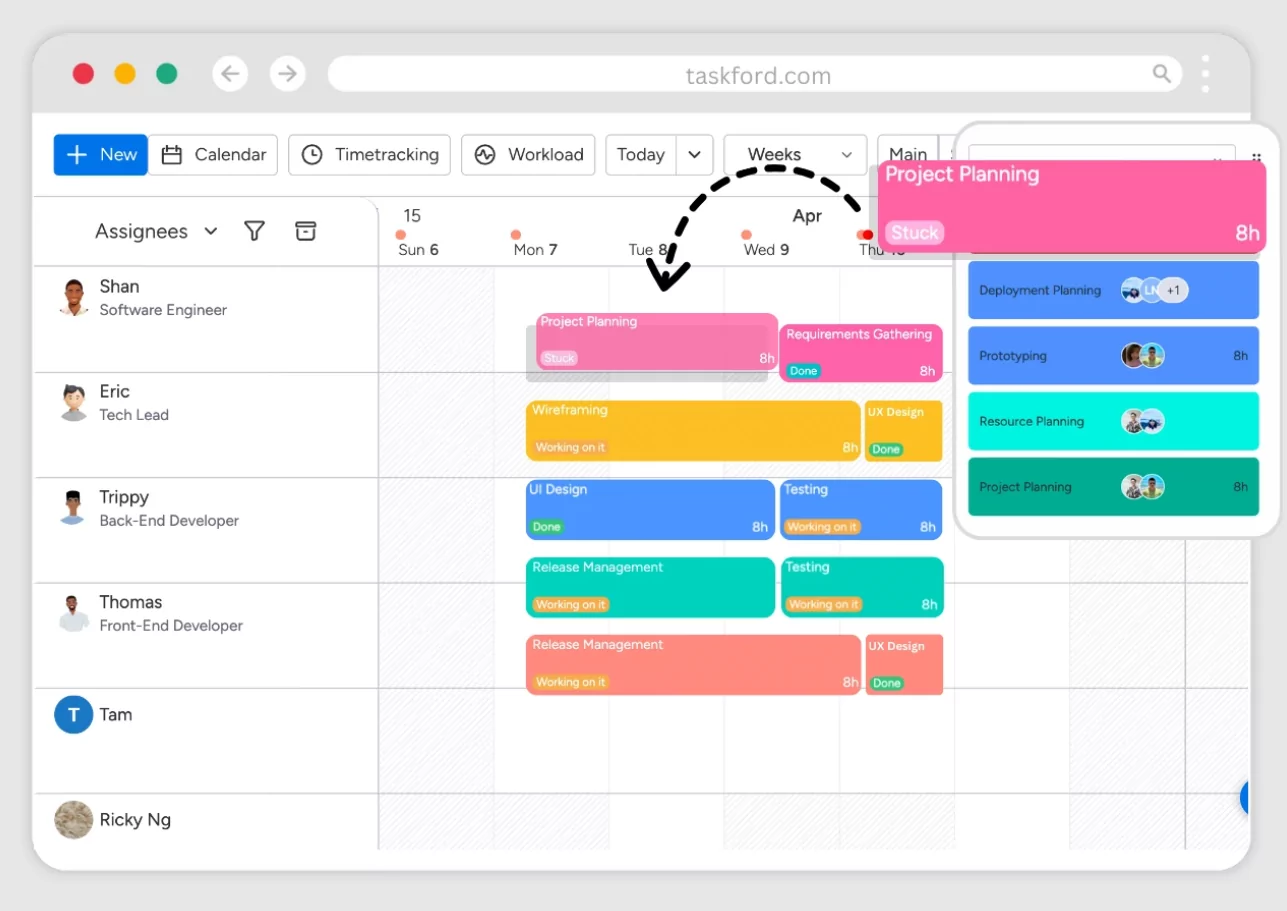
What Time Blocking Is (And Why It Works)
In simple terms: if a task matters, it gets a dedicated time slot on your calendar. Calendar management best practices like time-blocking and consistent routines make follow-through easier because your plan is visible and repeatable. [web:3]
- It turns priorities into appointments: Your “important work” stops getting squeezed out by urgent requests.
- It creates boundaries: You decide when you are available for meetings, deep work, and personal time.
- It improves estimating: You learn how long tasks actually take and plan better over time.
Step-by-Step: Set Up Time Blocking in Any Calendar
Use Google Calendar, Apple Calendar, Outlook, or any digital calendar that supports recurring events and reminders.
- Start with fixed commitments: Add sleep, commute, school runs, meetings, and workouts first.
- Choose 1–3 daily outcomes: Identify the few results that would make today a “win.”
- Add deep work blocks: Schedule your hardest task during your peak energy hours (often morning).
- Batch shallow tasks: Email, admin, and messages go into one or two short blocks, not all day long.
- Insert buffers: Add 10–15 minutes between blocks to handle spillover and avoid domino delays.
- Set a shutdown block: Reserve 10 minutes to review, reschedule, and close your day calmly.
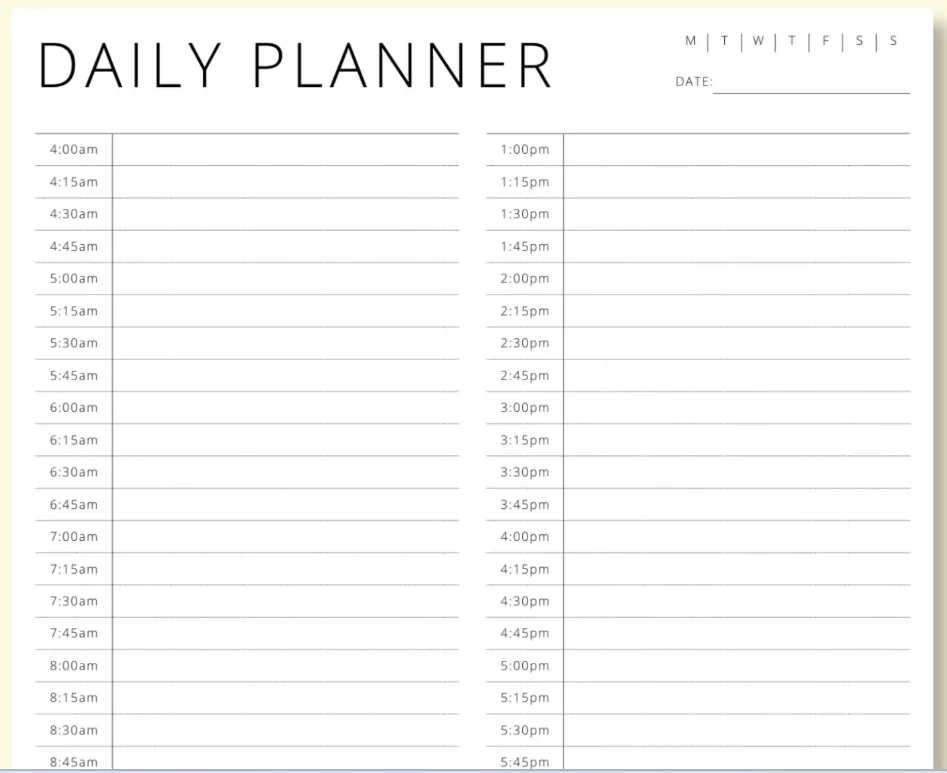
Best Daily Time Blocking Template (Example)
Copy this structure, then adjust durations for your job, commute, and energy levels. The goal is consistency, not perfection.
| Time | Block | Purpose |
|---|---|---|
| 07:00–08:00 | Morning routine | Start steady; avoid reactive scrolling. |
| 08:00–08:30 | Daily plan + top 3 outcomes | Decide priorities before the day decides for you. |
| 08:30–10:30 | Deep work block #1 | Most important project task; notifications off. |
| 10:30–10:45 | Buffer break | Reset, quick notes, water, stretch. |
| 10:45–11:45 | Meetings / collaboration | Group work stays grouped to protect focus time. |
| 11:45–12:30 | Admin + email batch | Process inbox; set next actions; stop “checking.” |
| 12:30–13:30 | Lunch | Real break (no laptop if possible). |
| 13:30–15:00 | Deep work block #2 | Second priority; writing, analysis, building. |
| 15:00–15:30 | Buffer + quick tasks | Small items that would otherwise interrupt deep work. |
| 15:30–16:30 | Calls / follow-ups | Close loops; schedule next steps. |
| 16:30–17:00 | Shutdown routine | Review wins, move unfinished tasks, plan tomorrow. |
Expert Tips to Make Time Blocking Stick
- Use color categories: Deep work, meetings, admin, personal, and buffers should be visually distinct.
- Name blocks clearly: “Deep Work: Proposal Draft” beats “Work” because it’s actionable.
- Protect peak hours: Put your hardest work where you have the most energy, not where it “fits.”
- Create recurring blocks: A repeating schedule reduces planning friction and builds a routine.
- Plan for reality: If your role is meeting-heavy, shorten deep work blocks but keep them daily.
Common Time Blocking Mistakes (And Fixes)
- Mistake: Overpacking the calendar with zero breathing room. Fix: Add buffers after every major block.
- Mistake: Treating blocks as “failure” if interrupted. Fix: If disrupted, drag-and-drop the block; don’t delete it.
- Mistake: Scheduling only work tasks. Fix: Block breaks, meals, exercise, and family time so your plan is sustainable.
- Mistake: Checking email all day. Fix: Use 1–2 email batches and close the inbox outside those times.
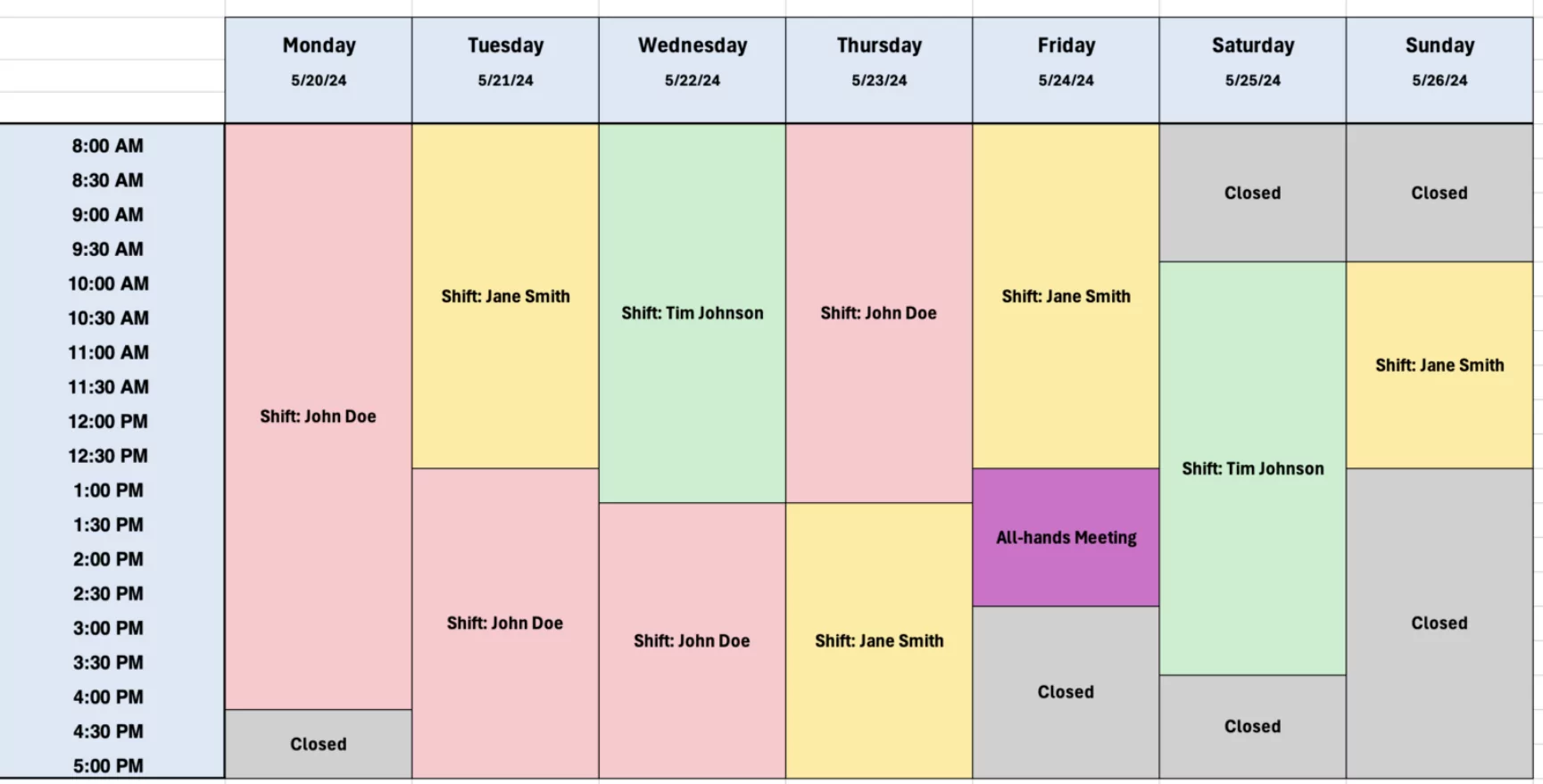
FAQ: Time Blocking in a Daily Calendar
How long should a time block be?
Start with 60–120 minutes for deep work and 15–30 minutes for admin. If you struggle to focus, begin with 30–45 minute blocks and expand gradually.
What if my day changes constantly?
Use “flex blocks” (30–60 minutes) labeled “Catch-up / Reschedule.” When something breaks, move tasks into the flex block instead of abandoning the plan.
Should I time block on paper or digitally?
Digital calendars are easier to adjust, share, and sync across devices, while paper can feel simpler. Choose the one you will update daily—consistency matters more than the tool.


