In the digital age, juggling multiple schedules is the norm. We often maintain separate calendars for work (Outlook, Google Workspace), personal life (Apple Calendar, family sharing), side projects, and academic deadlines. The complexity of modern life demands a single, unified view of our commitments, yet the fragmentation across different platforms and devices remains a major productivity bottleneck. Failing to properly sync multiple calendars leads to double-bookings, missed appointments, and chronic stress. This Ultimate Guide provides a comprehensive, step-by-step roadmap to achieving flawless calendar synchronization across all your devices, ensuring maximum efficiency and calendar mastery.
Phase 1: Understanding the Core Synchronization Protocols
Before attempting to sync, it’s essential to understand the technology that enables calendar integration. Calendars rarely sync directly between competing services (like Google to Outlook). Instead, they rely on universal communication protocols.
1. The Two Primary Protocols: CalDAV and iCalendar (ICS)
- iCalendar (.ics): The One-Way Street: The most common method involves sharing a calendar via an iCalendar (.ics) link. This method is read-only; you can see the external calendar’s events, but you cannot edit or add events to it. It’s perfect for viewing static schedules (e.g., public holidays, sports team schedules) or viewing a work calendar on a personal device without two-way access.
- CalDAV: The Two-Way Synchronization: CalDAV (Calendar Distributed Authoring and Versioning) is the powerful, two-way protocol. Services like Google, Apple (iCloud), and many professional hosts use CalDAV to allow full read, write, and editing capabilities across different apps and devices. Achieving true, seamless sync requires setting up accounts using CalDAV wherever possible.
2. Authentication vs. Sharing
Always distinguish between Authentication (logging in directly with a username and password to grant full CalDAV access) and Sharing (generating an ICS link). For full productivity, Authentication (CalDAV) is preferred.
Phase 2: Setting Up Cross-Platform Synchronization (Hub Strategy)
The most effective strategy is the Hub Strategy: designating one primary calendar (the Hub) and funneling all other calendars into it. For most users, Google Calendar or Outlook/Microsoft 365 serves best as the Hub due to their ubiquitous app support.
Scenario A: Syncing Apple (iCloud) to Google (The Hub)
This is often the trickiest sync due to Apple’s closed ecosystem, but it is achievable:
- Step 1 (Generate ICS): Log into iCloud and go to the Calendar settings. Select the calendar you want to share. Change its public status to “Public Calendar” and copy the unique ICS URL.
- Step 2 (Import to Google): Go to your Google Calendar. Under “Other calendars,” click the plus (+) sign, and select “From URL.” Paste the iCloud ICS link.
- Result: This is a read-only sync. Events created in iCloud appear in Google, but events added in Google will not appear in iCloud. For two-way sync, you need a third-party bridge tool (see Phase 4).
Scenario B: Syncing Outlook/Exchange to Google (The Hub)
If you use Microsoft 365 for work, the process often utilizes an underlying CalDAV/Exchange server connection:
- Option 1 (Direct Account Access): If your organization allows it, simply add your Outlook account directly to your Android device or desktop email client (like Apple Mail). Most modern clients automatically configure the Exchange/ActiveSync connection, which includes CalDAV for two-way calendar sync.
- Option 2 (ICS Share): If direct connection is blocked, you can use the Outlook Web App (OWA) to find the “Publish Calendar” settings and generate a secure ICS link, which can then be imported into Google Calendar (read-only).
Scenario C: Consolidating Multiple Google Accounts
If you have a primary Google account (personal) and a secondary Google account (work/side hustle), the sync is simple because they share the same underlying technology.
- Sharing: In the secondary calendar, go to Settings and Sharing and grant viewing/editing permissions to your primary Google account email address.
- Result: The secondary calendar will appear within your primary Google Calendar interface with full two-way functionality.
Phase 3: Synchronizing Across All Devices (The Endpoint Strategy)
Once your Hub calendar is successfully consolidated (e.g., all events live in or flow into your primary Google Calendar), you must ensure every device can access this single Hub via the CalDAV connection.
1. Desktop and Laptop Synchronization
The key here is to use native apps or browser logins and ensure the account is set up using the correct protocol.
- Windows/Mac: Add the Hub account (Google, Outlook, or iCloud) directly to the operating system’s native mail and calendar application (e.g., Windows Calendar, Apple Calendar). This forces the OS to use CalDAV for full two-way sync, eliminating the need for a separate app.
- Browser: Always keep the Hub calendar open in a dedicated browser tab for instant access and real-time updates.
2. Mobile Synchronization (iOS and Android)
Mobile devices offer the best synchronization, provided you configure the accounts correctly.
- Android: This OS seamlessly integrates with Google Calendar by default. Ensure all accounts are logged into the phone’s settings and that synchronization is turned on for all necessary calendars.
- iOS (iPhone/iPad): To sync a non-Apple calendar (like Google) on an iPhone, do not use the ICS link. Instead, go to Settings > Calendar > Accounts > Add Account and select the provider (Google, Exchange, etc.). This sets up the CalDAV connection for full two-way sync through the native Apple Calendar app.
3. Verification: The Test Event
After setting up sync on a new device, always perform a Test Event. Create an event on the device, confirm it appears on the Hub, and then confirm it appears on a secondary device. If the event fails to appear, the synchronization is broken, and you must check the account protocol (likely stuck on ICS/read-only).
Phase 4: Advanced Synchronization and Bridge Tools
For users who require true two-way sync between systems that do not natively support CalDAV sharing (e.g., iCloud to Outlook, or niche calendars like Zoho), third-party services act as powerful middleware or “bridges.”
Middleware Services (Zapier, IFTTT)
Automation platforms like Zapier or IFTTT (If This, Then That) can be configured to watch Calendar A. When a new event is created, they automatically execute an action to create an identical event on Calendar B. This achieves a near-perfect two-way sync, though there might be a small delay (1–15 minutes) depending on the service.
Dedicated Sync Tools (e.g., OneCal, SyncGene)
For power users and professionals, dedicated paid subscription services offer continuous, reliable, and instantaneous two-way synchronization for nearly all calendar platforms. These tools bypass the limitations of ICS links and are essential for those managing client schedules or internal team calendars across different systems.
Phase 5: Common Mistakes and Troubleshooting
Even with careful setup, synchronization can fail. Addressing these common mistakes is key to maintaining a functional, unified calendar.
Mistake 1: Relying on Read-Only Links
The biggest error is using an ICS URL and expecting to be able to edit events. The ICS link is a snapshot that refreshes periodically; it is not a live, editable connection. Always choose CalDAV/Exchange configuration when possible.
Mistake 2: Forgetting to Set the Default Calendar
When adding an event, especially on a mobile device, users often forget to check which calendar the event is being saved to. If you are viewing a unified calendar but accidentally save the event to the non-synced local device calendar, the event will not appear on your other devices. Always set your Hub calendar as the default for new entries on every device.
Mistake 3: Synchronization Frequency Issues
Some devices or apps intentionally limit synchronization frequency to save battery life. If your calendar seems delayed, check the device settings (e.g., iOS Fetch New Data settings or Android battery optimization for the Calendar app) to ensure it is set to Push or a short Fetch interval.
Mistake 4: Duplication and Merging
When using third-party bridge tools or setting up multiple sync methods, you risk creating duplicate events. The best way to prevent this is to use only one sync method (either ICS/CalDAV or a third-party bridge) between any two specific calendars. If duplicates appear, delete the imported calendar and re-import it using the correct, single method.
Conclusion: Calendar Integration is Productivity
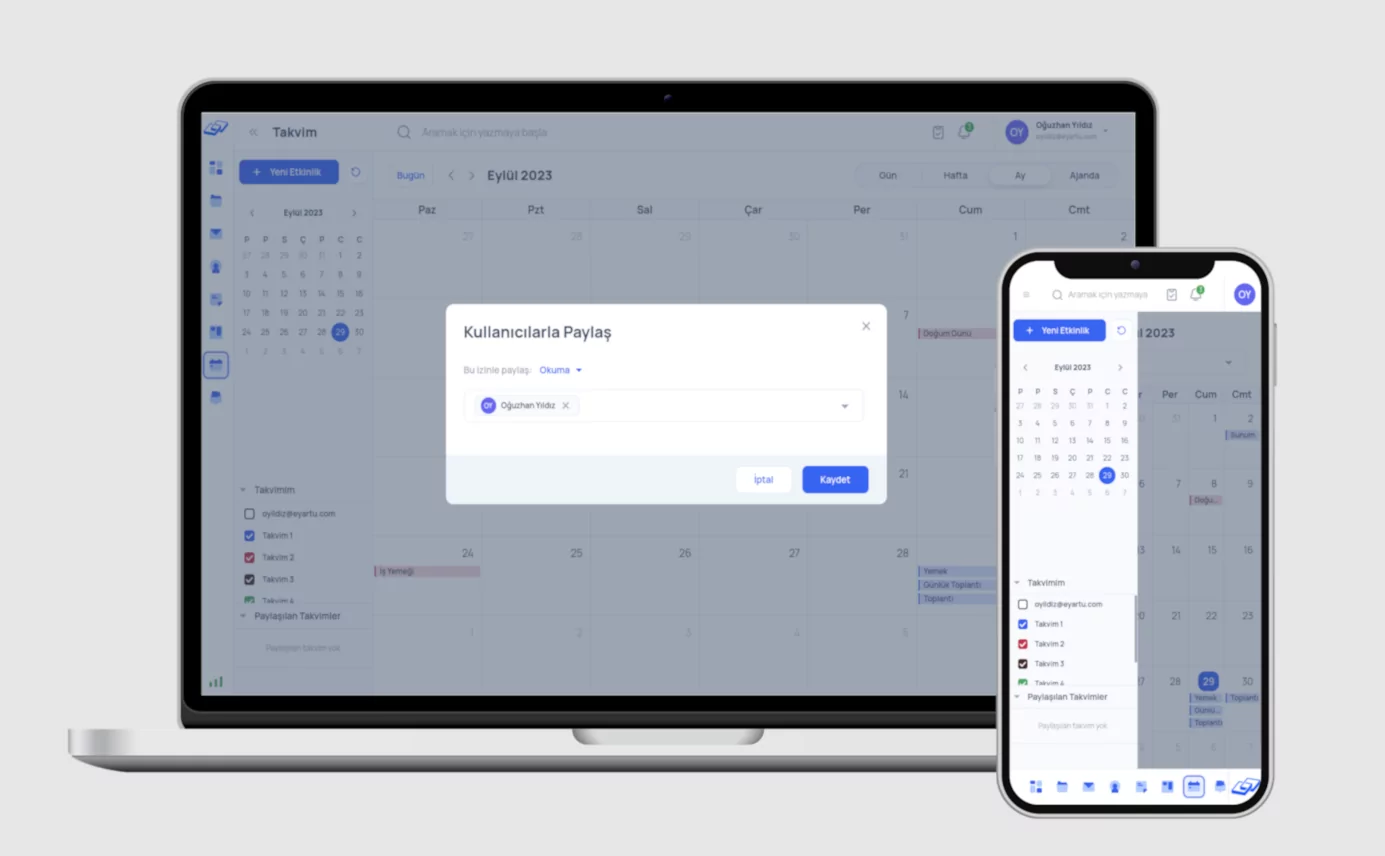
Mastering the synchronization of multiple calendars is not just technical; it is a fundamental productivity skill. By centralizing all appointments into a single Hub Calendar using robust protocols like CalDAV and ensuring that every device and app accesses this Hub, you eliminate the cognitive load of checking multiple places.
This organized approach ensures that critical professional commitments, personal obligations, and project deadlines are always visible in one reliable timeline, ultimately freeing up mental space for genuine deep work and strategic thinking. Embrace the Hub strategy and achieve true calendar mastery in the digital workflow.
