A yearly calendar provides one of the most effective ways to visualize an entire year, helping individuals, families, students, and professionals stay organized. Whether you’re planning vacations, tracking important deadlines, scheduling projects, or managing business goals, a 2026 Yearly Calendar at a Glance offers a convenient overview of all twelve months in a single view.
Unlike monthly planners that focus on short-term scheduling, a yearly calendar helps you identify long-term commitments, seasonal trends, holidays, and major milestones. With 2026 approaching, now is the perfect time to understand how a full-year calendar can improve planning, productivity, and time management.
This professional guide covers everything you need to know about using a 2026 yearly calendar effectively.
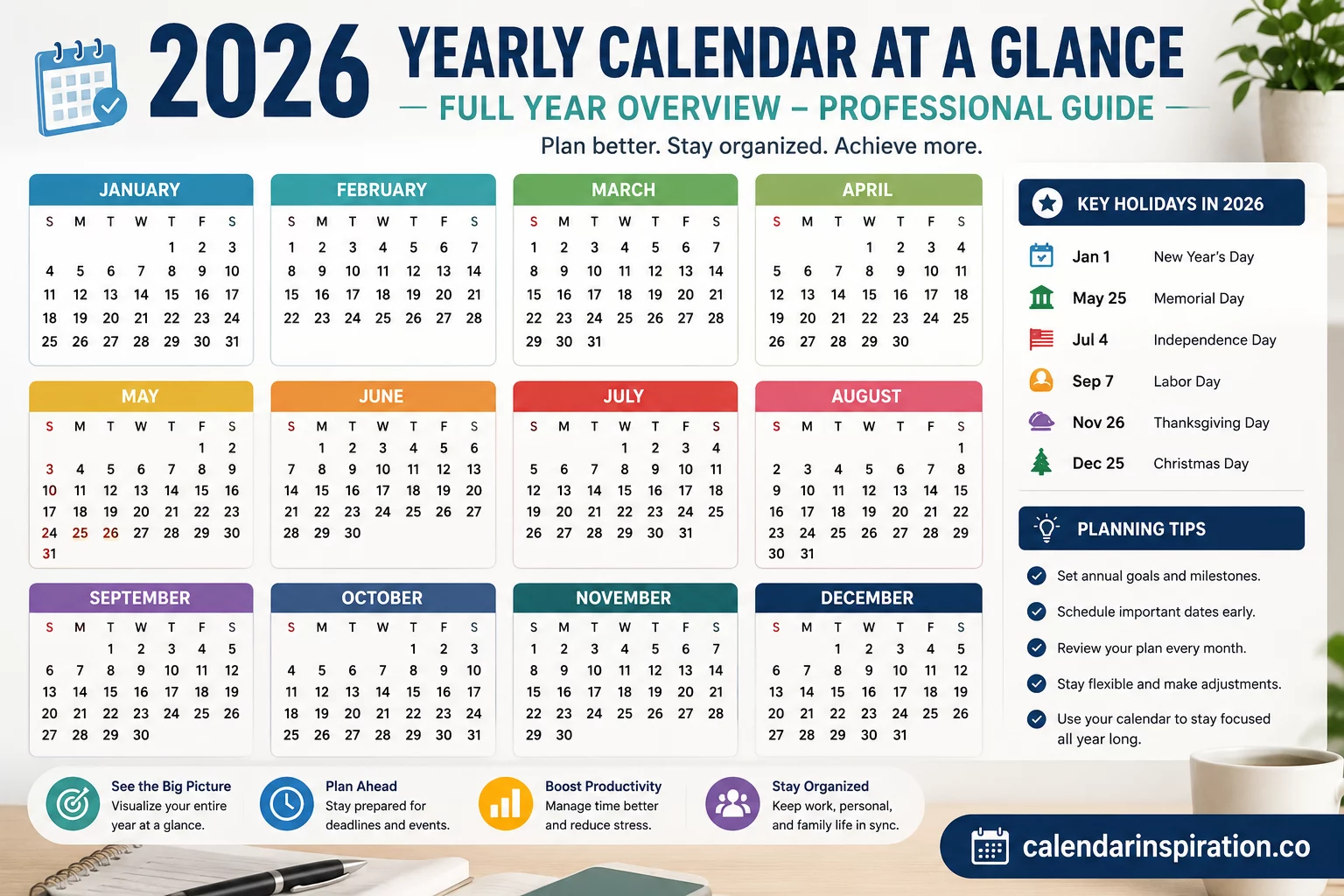
What Is a Yearly Calendar at a Glance?
A yearly calendar at a glance displays all twelve months of the year on a single page or spread.
Unlike traditional monthly calendars, it provides:
- A complete year overview
- Quick date reference
- Long-term planning visibility
- Goal tracking opportunities
- Event scheduling support
Many people use yearly calendars as strategic planning tools because they make it easier to see the “big picture.”
Why Use a 2026 Yearly Calendar?
A yearly calendar offers several advantages over monthly scheduling alone.
Better Long-Term Planning
Viewing the entire year helps identify important periods, deadlines, and opportunities.
Improved Goal Setting
Annual goals become easier to monitor when milestones are visible throughout the year.
Enhanced Productivity
Seeing commitments months in advance helps avoid scheduling conflicts.
Stronger Time Management
A full-year view allows better allocation of personal and professional priorities.
Overview of the 2026 Calendar Year
The year 2026 consists of:
- 365 days
- 12 months
- 52 weeks and 1 day
Unlike 2024, which was a leap year, 2026 follows the standard Gregorian calendar format.
Key Facts About 2026
- January 1, 2026 falls on a Thursday.
- December 31, 2026 falls on a Thursday.
- February contains 28 days.
- The year includes four quarters.
Understanding the structure of the year can help improve planning accuracy.
The Four Quarters of 2026
Businesses and organizations often divide the year into quarters.
First Quarter (Q1)
January – March
Common activities:
- New Year planning
- Budget development
- Goal setting
- Strategic planning
Second Quarter (Q2)
April – June
Focus areas:
- Project execution
- Spring initiatives
- Mid-year assessments
Third Quarter (Q3)
July – September
Typical priorities:
- Summer schedules
- Vacation planning
- Performance reviews
Fourth Quarter (Q4)
October – December
Often includes:
- Holiday planning
- Year-end reporting
- Budget preparation
- Goal evaluation
Viewing the year by quarters simplifies large-scale planning.
Major Holidays to Note in 2026
One of the biggest advantages of a yearly calendar is holiday visibility.
Common holidays include:
January
- New Year’s Day
May
- Memorial Day (United States)
July
- Independence Day (United States)
September
- Labor Day
November
- Thanksgiving
December
- Christmas Day
International users may also add country-specific public holidays.
How Professionals Use Yearly Calendars
Professionals rely on yearly calendars for strategic planning.
Project Management
Track deadlines and milestones across multiple projects.
Business Planning
Visualize fiscal periods and operational schedules.
Team Coordination
Plan meetings, conferences, and company events.
Resource Allocation
Identify busy periods and staffing needs.
A yearly overview helps reduce scheduling surprises.
Benefits for Students
Students can also benefit from a 2026 yearly calendar.
Academic Planning
Track semesters, exams, and assignments.
Study Scheduling
Allocate preparation time for major tests.
Extracurricular Activities
Manage sports, clubs, and volunteer commitments.
Application Deadlines
Monitor college, scholarship, and internship submissions.
Early planning often leads to better academic outcomes.
Benefits for Families
Families frequently use yearly calendars to coordinate activities.
Common uses include:
- School schedules
- Family vacations
- Medical appointments
- Birthdays
- Anniversaries
- Holiday gatherings
A shared yearly calendar improves communication and organization.
How to Use a 2026 Calendar for Goal Setting
Many successful people use annual calendars to track goals.
Financial Goals
Examples:
- Saving for a home
- Building an emergency fund
- Paying off debt
Career Goals
Examples:
- Professional certifications
- Promotions
- Skill development
Health Goals
Examples:
- Exercise milestones
- Weight-loss targets
- Wellness routines
Breaking goals into monthly milestones improves accountability.
Digital vs Printable Yearly Calendars
Both formats offer unique benefits.
Printable Calendars
Advantages:
- Easy wall display
- Quick reference
- No screen time
- Custom notes
Digital Calendars
Advantages:
- Automatic reminders
- Cloud synchronization
- Mobile accessibility
- Real-time updates
Many users combine both methods for maximum effectiveness.
Best Practices for Yearly Planning
To get the most from your calendar:
Mark Important Dates Early
Add known events at the beginning of the year.
Color-Code Categories
Examples:
- Work
- Family
- Travel
- Finance
- Health
Review Monthly
Update your calendar regularly.
Schedule Buffer Time
Avoid overbooking important periods.
These habits improve organization and reduce stress.
Common Mistakes to Avoid
Overloading the Calendar
Leave room for unexpected opportunities and responsibilities.
Ignoring Personal Time
Balance work obligations with rest and recreation.
Failing to Review Plans
Regular reviews ensure goals remain relevant.
Not Tracking Progress
A calendar is most effective when actively maintained.
How Businesses Use Yearly Calendars
Organizations often depend on yearly calendars for operational planning.
Examples include:
Marketing Campaigns
Schedule promotions and product launches.
Budget Cycles
Track fiscal planning and reporting periods.
Human Resources
Manage recruitment and training schedules.
Event Planning
Coordinate conferences, trade shows, and meetings.
A yearly view supports strategic decision-making.
Future Planning Beyond 2026
A yearly calendar is not only about the current year.
Many planners use it to:
- Prepare for future projects
- Set long-term goals
- Track recurring commitments
- Build multi-year strategies
Forward-thinking planning improves both personal and professional success.
Frequently Asked Questions
What is a 2026 yearly calendar at a glance?
It is a calendar that displays all twelve months of 2026 on a single page or overview.
Why use a yearly calendar instead of monthly calendars?
Yearly calendars provide better visibility for long-term planning and goal tracking.
Is 2026 a leap year?
No. 2026 contains 365 days and is not a leap year.
Can a yearly calendar improve productivity?
Yes. It helps identify deadlines, avoid conflicts, and organize commitments.
Should I use a printable or digital calendar?
Both have advantages. Many people use a combination of both formats.
How often should I update my yearly calendar?
Reviewing and updating monthly is generally recommended.
A 2026 Yearly Calendar at a Glance: Full Year Overview is one of the most valuable planning tools available for individuals, families, students, and businesses. By providing a complete view of the year, it helps improve organization, support goal achievement, and reduce scheduling conflicts.
Whether you prefer a printable wall calendar, a digital planner, or a combination of both, taking time to map out your year can lead to greater productivity and peace of mind. With proper planning, the 2026 calendar becomes more than a collection of dates—it becomes a roadmap for success.