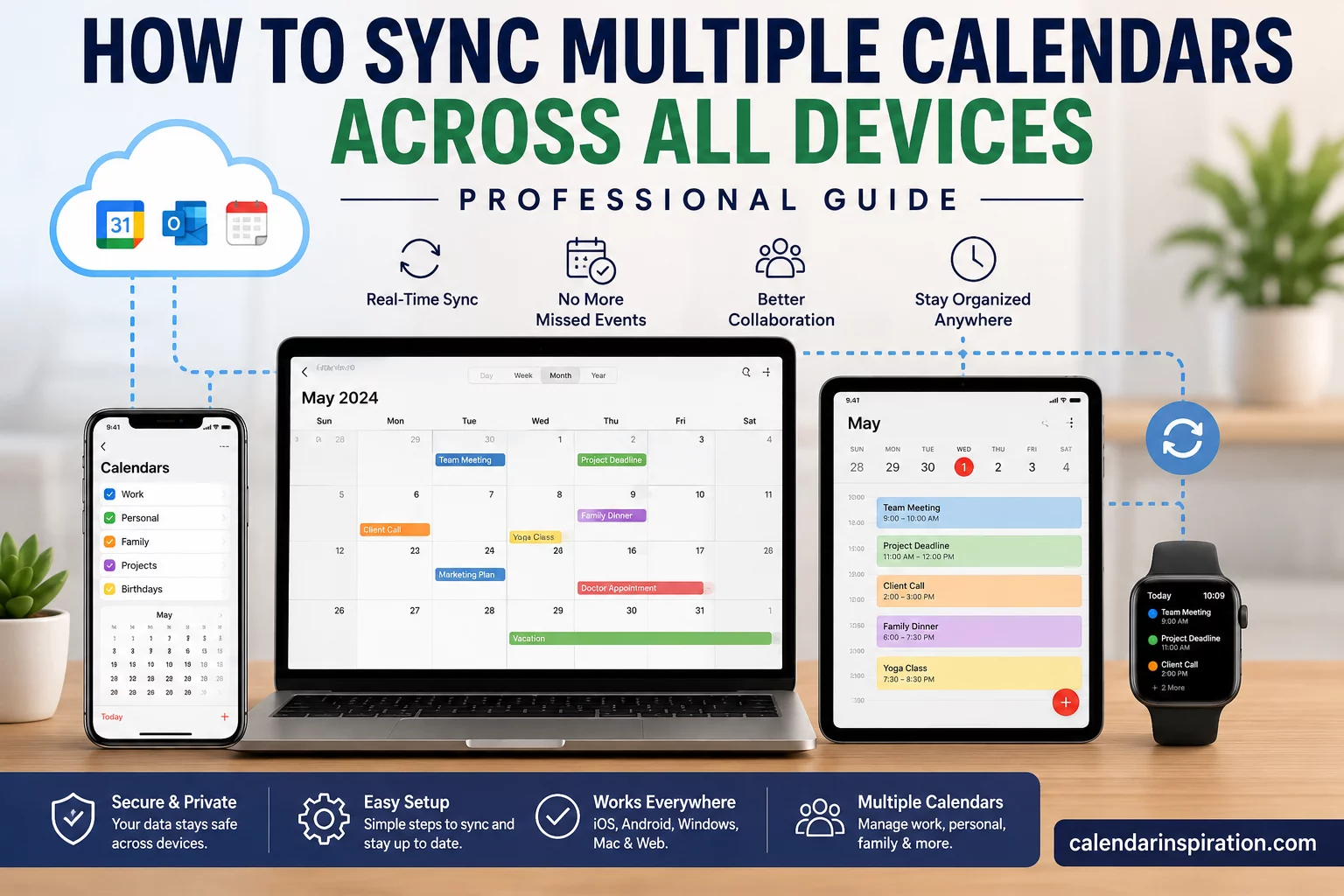
In today’s connected world, managing schedules across multiple devices is essential. Many professionals, students, business owners, and families use several calendars simultaneously, including work calendars, personal calendars, shared family schedules, and project management calendars. Without proper synchronization, appointments can be missed, deadlines overlooked, and productivity reduced.
This professional guide explains how to sync multiple calendars across all devices, ensuring your schedule stays updated whether you’re using a smartphone, tablet, laptop, or desktop computer.
By following these best practices, you can streamline your calendar management and keep every important event synchronized in real time.
Why Calendar Synchronization Matters
Calendar synchronization allows events, appointments, and reminders to automatically update across all connected devices.
Benefits include:
- Real-time schedule updates
- Reduced scheduling conflicts
- Improved productivity
- Better team collaboration
- Enhanced time management
- Access to events from anywhere
Without synchronization, manually updating multiple calendars can become time-consuming and prone to errors.
Common Types of Calendars People Use
Most users manage more than one calendar.
Popular calendar platforms include:
- Google Calendar
- Microsoft Outlook Calendar
- Apple Calendar
- Yahoo Calendar
- Exchange Calendars
- Team Collaboration Calendars
- Shared Family Calendars
The challenge is ensuring all these calendars work together seamlessly.
Understanding Calendar Sync Technology
Calendar synchronization relies on cloud-based technology.
When an event is added to one device, the information is stored on a remote server. The server then distributes updates to all connected devices.
This process typically uses:
- Internet connectivity
- Cloud storage
- Synchronization protocols
- Calendar APIs
- Account authentication
As long as devices remain connected, updates occur automatically.
How to Sync Google Calendar Across Devices
Google Calendar is one of the most widely used calendar platforms.
Step 1: Sign In
Log into the same Google account on all devices.
Step 2: Enable Sync
On Android devices:
- Open Settings
- Select Accounts
- Choose Google
- Enable Calendar Sync
Step 3: Install Google Calendar
Install the Google Calendar app on:
- Smartphones
- Tablets
- Computers
Step 4: Verify Synchronization
Create a test event and confirm it appears across all devices.
Google Calendar typically updates within seconds.
How to Sync Microsoft Outlook Calendar
Outlook Calendar is widely used in business environments.
Connect Your Microsoft Account
Use the same Microsoft account on all devices.
Enable Exchange Synchronization
Most corporate accounts use Microsoft Exchange for automatic synchronization.
Install Outlook Apps
Use official Outlook applications on:
- Windows PCs
- Mac computers
- Android devices
- iPhones and iPads
This ensures the most reliable synchronization experience.
How to Sync Apple Calendar Across Devices
Apple Calendar integrates seamlessly within the Apple ecosystem.
Enable iCloud
Navigate to:
Settings > Apple ID > iCloud
Turn on Calendar synchronization.
Use the Same Apple ID
Ensure every Apple device uses the same account.
Verify Sync Status
Create an event and confirm it appears on all connected devices.
Apple’s iCloud service typically syncs events automatically.
How to Sync Google Calendar and Outlook Together
Many professionals use both Google and Outlook calendars.
Synchronization methods include:
Calendar Subscription
Import one calendar into another using shared calendar links.
Third-Party Sync Tools
Examples include:
- SyncGene
- OneCal
- CalendarBridge
These services automatically synchronize multiple platforms.
Microsoft Outlook Integration
Some Outlook versions allow direct Google Calendar integration.
How to Sync Shared Family Calendars
Family calendars help coordinate schedules among household members.
Benefits include:
- Tracking school events
- Managing appointments
- Coordinating activities
- Organizing vacations
Popular solutions include:
- Google Family Calendar
- Apple Family Sharing
- Microsoft Family Calendar
Shared calendars automatically update for all members.
Best Calendar Sync Apps for Multiple Platforms
Several specialized tools simplify calendar management.
OneCal
Synchronizes multiple calendars while preventing scheduling conflicts.
SyncGene
Supports Google, Outlook, Apple Calendar, and Exchange.
CalendarBridge
Designed for professionals managing work and personal calendars.
Reclaim.ai
Combines calendar synchronization with productivity automation.
These tools can significantly reduce manual scheduling tasks.
Tips for Managing Multiple Calendars Efficiently
Synchronization is only part of the solution.
Use Color Coding
Assign different colors to:
- Work events
- Personal appointments
- Family schedules
- Project deadlines
Create Clear Calendar Names
Examples:
- Personal Calendar
- Work Calendar
- Family Calendar
- Travel Calendar
Avoid Duplicate Entries
Use one primary calendar whenever possible.
Review Weekly
Schedule a weekly review to ensure everything remains organized.
Common Calendar Sync Problems
Even modern systems occasionally experience issues.
Events Not Updating
Possible causes include:
- Poor internet connection
- Disabled synchronization settings
- Account authentication errors
Duplicate Events
Often caused by importing the same calendar multiple times.
Missing Reminders
Notification settings may not be configured correctly.
Time Zone Errors
Incorrect time zone settings can cause scheduling confusion.
How to Troubleshoot Calendar Sync Issues
If synchronization stops working:
Refresh Accounts
Sign out and sign back in.
Check Internet Access
Most calendar platforms require connectivity.
Update Applications
Ensure apps are running the latest versions.
Verify Sync Settings
Confirm synchronization remains enabled.
Restart Devices
A simple restart often resolves temporary issues.
Security Considerations for Calendar Sync
Protecting calendar information is important.
Best practices include:
Use Strong Passwords
Secure all calendar accounts.
Enable Two-Factor Authentication
Add an extra layer of protection.
Review Sharing Permissions
Limit access to sensitive calendars.
Monitor Third-Party Apps
Only authorize trusted synchronization services.
Security should remain a priority when managing personal and professional schedules.
Future Trends in Calendar Synchronization
Calendar technology continues to evolve.
Emerging features include:
- AI-powered scheduling
- Automatic meeting optimization
- Smart conflict resolution
- Cross-platform collaboration
- Predictive calendar management
These innovations will make calendar synchronization even more seamless.
Frequently Asked Questions
Can I sync Google Calendar with Apple Calendar?
Yes. Google Calendar can be added to Apple Calendar through account integration settings.
How often do calendars synchronize?
Most cloud-based calendars update automatically within seconds or minutes.
Can I sync multiple Google accounts?
Yes. Google Calendar supports multiple accounts on a single device.
What is the best calendar sync tool?
Popular options include OneCal, SyncGene, CalendarBridge, and Reclaim.ai.
Why are my calendar events not syncing?
Common causes include disabled sync settings, internet issues, or account authentication problems.
Is calendar synchronization secure?
Yes, when using trusted providers and enabling strong security measures such as two-factor authentication.
Understanding how to sync multiple calendars across all devices is essential for effective time management in today’s digital environment. Whether you use Google Calendar, Outlook, Apple Calendar, or a combination of platforms, proper synchronization ensures that your schedule remains accurate, accessible, and up to date.
By implementing the strategies outlined in this professional guide, you can eliminate scheduling conflicts, improve productivity, and gain complete control over your personal and professional commitments. With the right tools and practices, managing multiple calendars becomes simple, efficient, and stress-free.